
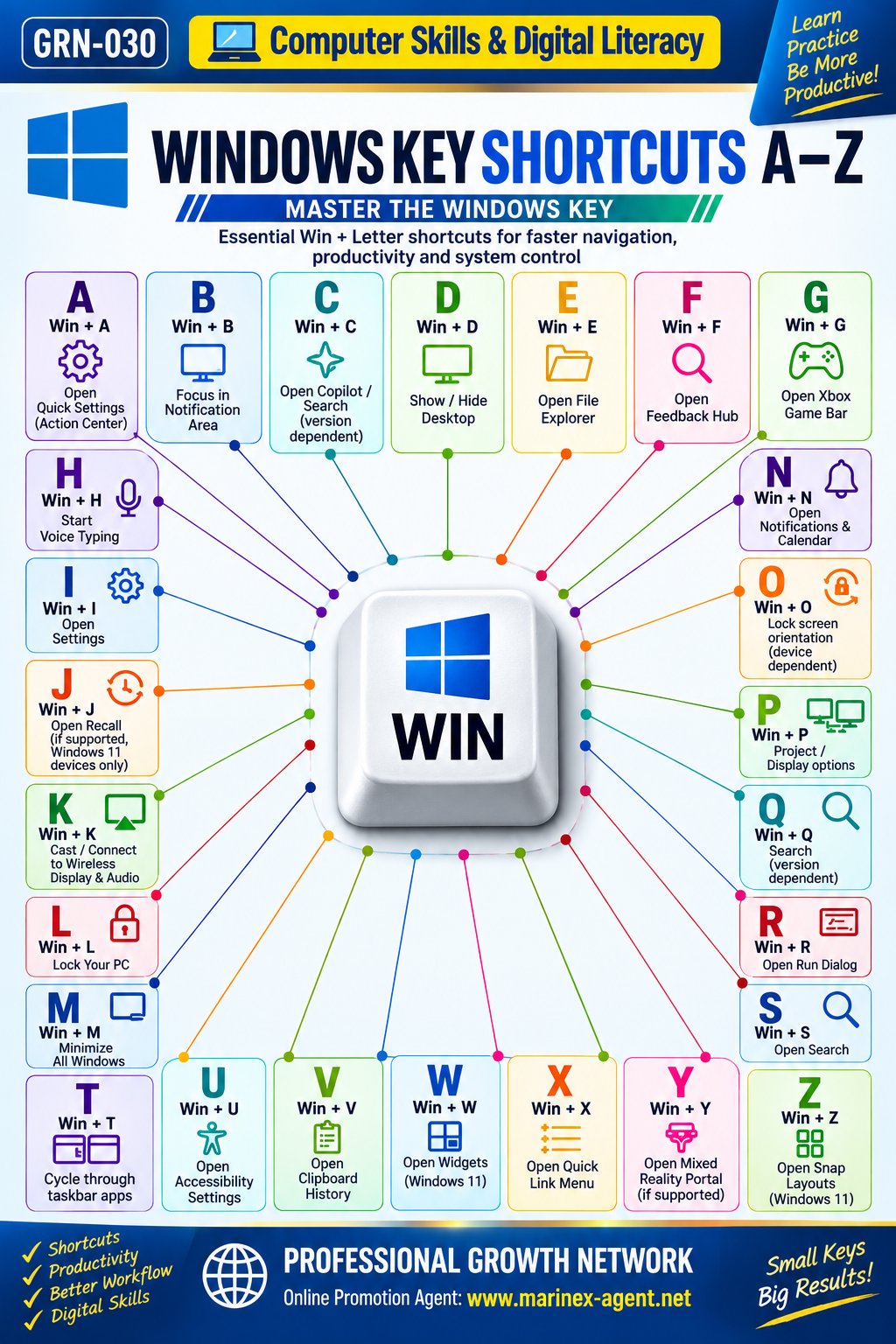
WINDOWS KEY SHORTCUTS A–Z:
MASTER THE WINDOWS KEY
Category: Computer Skills & Digital Literacy
Parent Category: PROFESSIONAL GROWTH NETWORK
Article Code: GRN-030
WORK SMARTER • SAVE TIME • BE MORE PRODUCTIVE
Introduction
Computer literacy is an essential skill in today’s digital world. Whether you are a student, entrepreneur, office employee, business consultant, or maritime professional, knowing keyboard shortcuts can significantly improve your daily productivity.
Microsoft Windows provides numerous keyboard combinations that allow users to open applications, manage windows, access system settings, and perform common tasks without constantly using a mouse.
One of the most useful keys is the Windows key (Win), usually located between the Ctrl and Alt keys.
The GRN-030 infographic introduces Windows key combinations from A to Z and explains how they can simplify everyday computer operations.
1. Windows Key Shortcuts A–G
A — Win + A: Quick Settings / Action Center
Opens the Action Center in Windows 10 or Quick Settings in Windows 11.
This shortcut provides convenient access to commonly used system controls.
B — Win + B: Notification Area
Moves keyboard focus to the notification area of the taskbar.
You can then use the arrow keys to navigate between system tray icons.
C — Win + C: Copilot or Search (Version-Dependent)
The function of this combination depends on the Windows version and configuration.
In certain Windows 11 releases, it was associated with Microsoft Copilot. In other versions, the shortcut may have a different function or no assigned action.
D — Win + D: Show or Hide Desktop
Minimizes or hides open windows to display the desktop.
Pressing the combination again can restore the previous window arrangement.
E — Win + E: File Explorer
Opens File Explorer.
This is one of the most practical shortcuts for accessing documents, downloads, folders, and storage devices.
F — Win + F: Feedback Hub
Opens Feedback Hub on supported Windows versions and configurations.
It allows users to submit feedback and report issues to Microsoft.
G — Win + G: Xbox Game Bar
Opens Xbox Game Bar when available and enabled.
It provides access to gaming-related tools, including certain screen capture and performance features.
2. Windows Key Shortcuts H–M
H — Win + H: Voice Typing
Starts voice typing on supported Windows systems.
This feature allows users to dictate text using a microphone instead of typing manually.
I — Win + I: Windows Settings
Opens the Windows Settings application.
Users can manage display settings, network connections, devices, accounts, accessibility, and other system preferences.
J — Win + J: Recall (Supported Windows 11 Devices)
On supported Windows 11 devices with Recall enabled, this combination can open the Recall interface.
Availability depends on hardware, software version, regional support, and feature configuration.
K — Win + K: Connect / Cast
Opens the interface for connecting to supported wireless displays and audio devices.
It can be useful during presentations, meetings, and multimedia activities.
L — Win + L: Lock Your Computer
Immediately locks the current Windows session.
This is particularly important when leaving a computer unattended in an office or shared environment.
M — Win + M: Minimize All Windows
Minimizes open windows that support minimization.
Unlike Win + D, this shortcut does not operate as a simple toggle for restoring the desktop view.
3. Windows Key Shortcuts N–S
N — Win + N: Notifications and Calendar
Opens the notification center and calendar interface in Windows 11.
It helps users review notifications and scheduled activities.
O — Win + O: Lock Screen Orientation
Locks the screen orientation on supported devices.
This shortcut is mainly relevant to tablets, convertible laptops, and devices with automatic screen rotation.
P — Win + P: Project / Display Options
Opens display projection settings.
Users can choose between options such as:
- PC screen only.
- Duplicate.
- Extend.
- Second screen only.
This shortcut is especially useful when connecting a computer to an external monitor or projector.
Q — Win + Q: Search
Opens Windows Search on supported versions.
It helps users locate applications, files, settings, and other available search results.
R — Win + R: Run Dialog Box
Opens the Run dialog box.
Users can enter commands, application names, or system utility names.
For example:
notepad— opens Notepad.calc— opens Calculator.control— opens Control Panel.
S — Win + S: Windows Search
Opens the Windows Search interface.
This is a convenient way to find installed programs, documents, and system settings.
4. Windows Key Shortcuts T–Z
T — Win + T: Taskbar Navigation
Moves focus to applications on the taskbar.
Repeatedly pressing the combination allows users to navigate through taskbar items.
U — Win + U: Accessibility Settings
Opens Accessibility settings.
These settings include tools for vision, hearing, interaction, and other accessibility requirements.
V — Win + V: Clipboard History
Opens Clipboard History when the feature is available.
Users can access previously copied text and other supported clipboard content.
Clipboard History may need to be enabled before first use.
W — Win + W: Widgets / Windows Ink Workspace
In Windows 11, this shortcut normally opens Widgets.
In certain older Windows versions, it was associated with Windows Ink Workspace.
X — Win + X: Quick Link Menu
Opens the Quick Link menu, also known as the Power User menu.
It provides convenient access to administrative and system tools, including:
- Device Manager.
- Disk Management.
- Terminal or PowerShell, depending on Windows version.
- Settings.
- File Explorer.
- Shut down or sign out options.
Y — Win + Y: Mixed Reality Input
On supported Windows Mixed Reality configurations, this shortcut switches input between the desktop and mixed reality environment.
It is a specialized shortcut and is not generally useful on standard desktop computers.
Z — Win + Z: Snap Layouts
Opens Snap Layouts in Windows 11 when supported by the active window.
This feature helps users organize several application windows on the screen.
It is particularly useful for multitasking and working with multiple documents.
5. The Most Useful Windows Shortcuts for Everyday Work
Although the infographic presents a broad collection of shortcuts, some combinations are especially valuable for everyday productivity.
| Shortcut | Main Function |
|---|---|
| Win + D | Show desktop |
| Win + E | Open File Explorer |
| Win + I | Open Settings |
| Win + L | Lock computer |
| Win + M | Minimize windows |
| Win + P | Display projection options |
| Win + R | Open Run dialog |
| Win + S | Open Search |
| Win + V | Clipboard History |
| Win + X | Quick Link menu |
| Win + Z | Snap Layouts (Windows 11) |
Learning these combinations can reduce repetitive mouse operations and make computer navigation more efficient.
6. Practical Applications in Professional Work
Windows keyboard shortcuts are particularly useful for professionals who regularly work with documents, websites, spreadsheets, and electronic correspondence.
Office Administration
Quickly access files, switch between tasks, open settings, and manage application windows.
International Business
Organize documents, prepare correspondence, access digital business tools, and improve workflow efficiency.
Website Management
Work more efficiently with browsers, WordPress administration, digital content, and online publishing platforms.
Maritime and Technical Operations
Use computer shortcuts when preparing technical documentation, maintaining digital records, managing files, and working with office applications.
Education and Training
Help students and professionals develop practical digital literacy and independent computer skills.
7. Windows 10 and Windows 11: Important Differences
Not every Windows keyboard shortcut works identically across all versions.
Some combinations have changed as Microsoft introduced new features, redesigned system interfaces, or discontinued older components.
Examples include:
- Win + A: Action Center in Windows 10; Quick Settings in Windows 11.
- Win + W: Windows Ink Workspace in certain older versions; Widgets in Windows 11.
- Win + Z: Snap Layouts in Windows 11.
- Win + J: Recall on supported Windows 11 devices and configurations.
- Win + Y: Associated with supported Windows Mixed Reality systems.
Certain shortcuts may also depend on installed applications, hardware capabilities, system policies, or enabled features.
Therefore, users should verify shortcut availability on their own computers.
8. How to Learn Keyboard Shortcuts Effectively
The best approach is to learn a small number of shortcuts and use them consistently.
Start with five essential combinations:
- Win + E — Open File Explorer.
- Win + D — Show desktop.
- Win + L — Lock computer.
- Win + R — Open Run.
- Win + I — Open Settings.
Practice these shortcuts during normal daily work.
Once they become familiar, gradually add more advanced combinations.
The objective is not to memorize every shortcut immediately, but to develop practical habits that improve productivity.
Conclusion
Windows keyboard shortcuts are simple but powerful tools for improving digital productivity.
By learning the Windows Key Shortcuts A–Z, computer users can navigate the operating system more efficiently, access important features faster, and reduce unnecessary mouse operations.
Some shortcuts are universal across modern Windows versions, while others depend on Windows 10, Windows 11, specific devices, or enabled features.
The GRN-030 infographic provides a convenient visual reference for developing computer skills and improving everyday workflow.
Digital literacy is an important part of professional development, and even small improvements in computer efficiency can create significant long-term benefits.
Learn • Practice • Be More Productive!
PROFESSIONAL GROWTH NETWORK
Online Promotion Agent: www.marinex-agent.net