
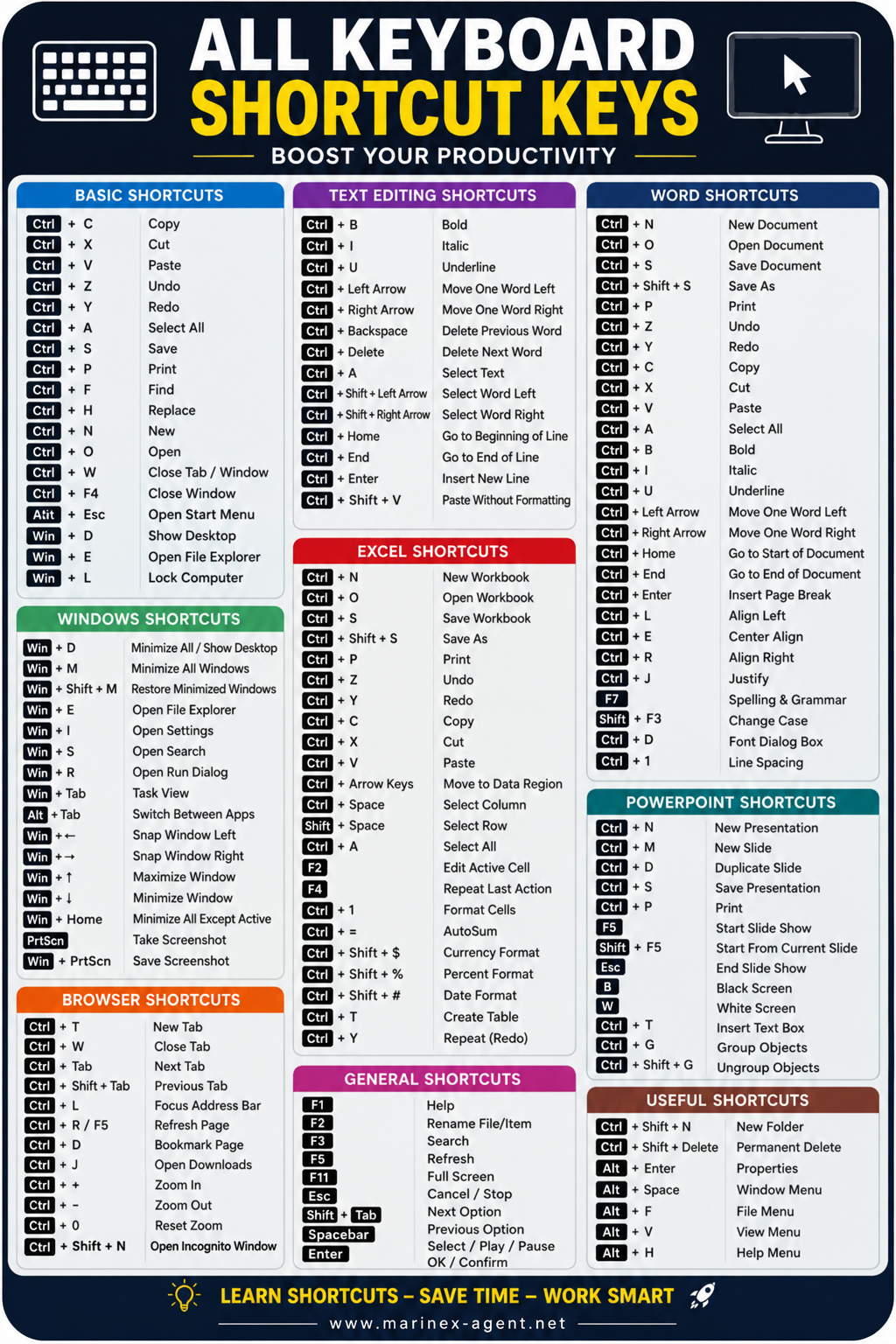
All Keyboard Shortcut Keys — Practical Productivity Guide
Category: Web & Digital Tools
REF NO: WDT-009
Keyboard shortcuts are one of the easiest ways to work faster and more efficiently on a computer.
Instead of repeatedly using the mouse for common tasks, you can perform many actions instantly with simple key combinations. This saves time, improves workflow, and helps maintain focus.
This article provides a practical overview of useful keyboard shortcuts for everyday work in Windows, browsers, text editing, Word, Excel, and PowerPoint.
1. Basic Shortcuts
These are the most frequently used keyboard shortcuts for everyday work.
- Ctrl + C — Copy selected text or item
- Ctrl + X — Cut selected text or item
- Ctrl + V — Paste copied or cut content
- Ctrl + Z — Undo last action
- Ctrl + Y — Redo last action
- Ctrl + A — Select all content
- Ctrl + S — Save current file
- Ctrl + P — Print
- Ctrl + F — Find text or content
- Ctrl + H — Replace text
- Ctrl + N — Create a new file or document
- Ctrl + O — Open file
- Ctrl + W — Close tab or window
- Alt + F4 — Close active window
- Alt + Esc — Open Start Menu
- Win + D — Show desktop
- Win + E — Open File Explorer
- Win + L — Lock computer
2. Windows Shortcuts
These shortcuts are useful for working quickly inside the Windows operating system.
- Win + D — Minimize all windows / show desktop
- Win + M — Minimize all windows
- Win + Shift + M — Restore minimized windows
- Win + E — Open File Explorer
- Win + I — Open Settings
- Win + S — Open Search
- Win + R — Open Run dialog
- Win + Tab — Open Task View
- Alt + Tab — Switch between open apps
- Win + ← / → — Snap window left / right
- Win + ↑ — Maximize window
- Win + ↓ — Minimize window
- Win + Home — Minimize all except active window
- PrtScn — Take screenshot
- Win + PrtScn — Save screenshot directly
3. Browser Shortcuts
Useful for Chrome and most modern browsers.
- Ctrl + T — Open new tab
- Ctrl + W — Close current tab
- Ctrl + Tab — Move to next tab
- Ctrl + Shift + Tab — Move to previous tab
- Ctrl + L — Focus address bar
- Ctrl + R / F5 — Refresh page
- Ctrl + D — Bookmark current page
- Ctrl + J — Open Downloads
- Ctrl + + — Zoom in
- Ctrl + – — Zoom out
- Ctrl + 0 — Reset zoom
- Ctrl + Shift + N — Open Incognito Window
This last shortcut is especially useful when you want to browse without saving history, cookies, or session data in the normal browser window.
4. Text Editing Shortcuts
These are practical shortcuts for faster text editing.
- Ctrl + B — Bold
- Ctrl + I — Italic
- Ctrl + U — Underline
- Ctrl + Left Arrow — Move one word left
- Ctrl + Right Arrow — Move one word right
- Ctrl + Backspace — Delete previous word
- Ctrl + Delete — Delete next word
- Ctrl + A — Select all text
- Ctrl + Shift + Left Arrow — Select word to the left
- Ctrl + Shift + Right Arrow — Select word to the right
- Ctrl + Home — Go to beginning of line/document
- Ctrl + End — Go to end of line/document
- Ctrl + Enter — Insert new line or break
- Ctrl + Shift + V — Paste without formatting
5. Excel Shortcuts
Excel becomes much faster when you use keyboard shortcuts regularly.
- Ctrl + N — New workbook
- Ctrl + O — Open workbook
- Ctrl + S — Save workbook
- Ctrl + Shift + S — Save As
- Ctrl + P — Print
- Ctrl + Z — Undo
- Ctrl + Y — Redo
- Ctrl + C / X / V — Copy / Cut / Paste
- Ctrl + Arrow Keys — Move to edge of data region
- Ctrl + Space — Select column
- Shift + Space — Select row
- Ctrl + A — Select all
- F2 — Edit active cell
- F4 — Repeat last action
- Ctrl + 1 — Format Cells
- Ctrl + = — AutoSum
- Ctrl + Shift + $ — Currency format
- Ctrl + Shift + % — Percent format
- Ctrl + Shift + # — Date format
- Ctrl + T — Create table
- Ctrl + Y — Repeat action
6. Word Shortcuts
These are useful for document writing and formatting in Microsoft Word.
- Ctrl + N — New document
- Ctrl + O — Open document
- Ctrl + S — Save document
- Ctrl + Shift + S — Save As
- Ctrl + P — Print
- Ctrl + Z — Undo
- Ctrl + Y — Redo
- Ctrl + C / X / V — Copy / Cut / Paste
- Ctrl + A — Select all
- Ctrl + B / I / U — Bold / Italic / Underline
- Ctrl + Left / Right Arrow — Move one word left / right
- Ctrl + Home — Go to start of document
- Ctrl + End — Go to end of document
- Ctrl + Enter — Insert page break
- Ctrl + L — Align left
- Ctrl + E — Center align
- Ctrl + R — Align right
- Ctrl + J — Justify
- F7 — Spelling and grammar
- Shift + F3 — Change case
- Ctrl + D — Font dialog box
- Ctrl + 1 — Single line spacing
7. PowerPoint Shortcuts
Helpful for presentation work.
- Ctrl + N — New presentation
- Ctrl + M — New slide
- Ctrl + D — Duplicate slide
- Ctrl + S — Save presentation
- Ctrl + P — Print
- F5 — Start slide show
- Shift + F5 — Start from current slide
- Esc — End slide show
- B — Black screen during presentation
- W — White screen during presentation
- Ctrl + T — Insert text box
- Ctrl + G — Group objects
- Ctrl + Shift + G — Ungroup objects
8. General and Useful Shortcuts
Additional shortcuts that are useful in many situations.
General
- F1 — Help
- F2 — Rename selected file/item
- F3 — Search
- F5 — Refresh
- F11 — Full screen
- Esc — Cancel / Stop
- Shift + Tab — Move to previous option
- Spacebar — Select / Play / Pause
- Enter — Confirm / OK
Useful
- Ctrl + Shift + N — New folder
- Shift + Delete — Permanent delete
- Alt + Enter — Properties
- Alt + Space — Window menu
- Alt + F — File menu
- Alt + V — View menu
- Alt + H — Help menu
9. Why Keyboard Shortcuts Matter
Using shortcuts regularly provides several practical advantages:
- saves time;
- reduces unnecessary mouse movement;
- improves work speed;
- helps maintain concentration;
- makes document editing easier;
- improves workflow in Windows and Office applications.
Even learning just 10–15 important shortcuts can noticeably improve daily productivity.
10. Practical Recommendation
The best way to remember shortcuts is simple:
Use them every day.
Start with the most common ones:
- Ctrl + C
- Ctrl + V
- Ctrl + Z
- Ctrl + S
- Ctrl + F
- Ctrl + T
- Ctrl + W
- Ctrl + Shift + N
- Alt + Tab
- Win + E
After that, gradually add Excel, Word, and PowerPoint shortcuts according to your daily work.
Final Note
Keyboard shortcuts are small tools with a big effect.
The more often you use them, the more natural and powerful they become.
Learn shortcuts — save time — work smart.