
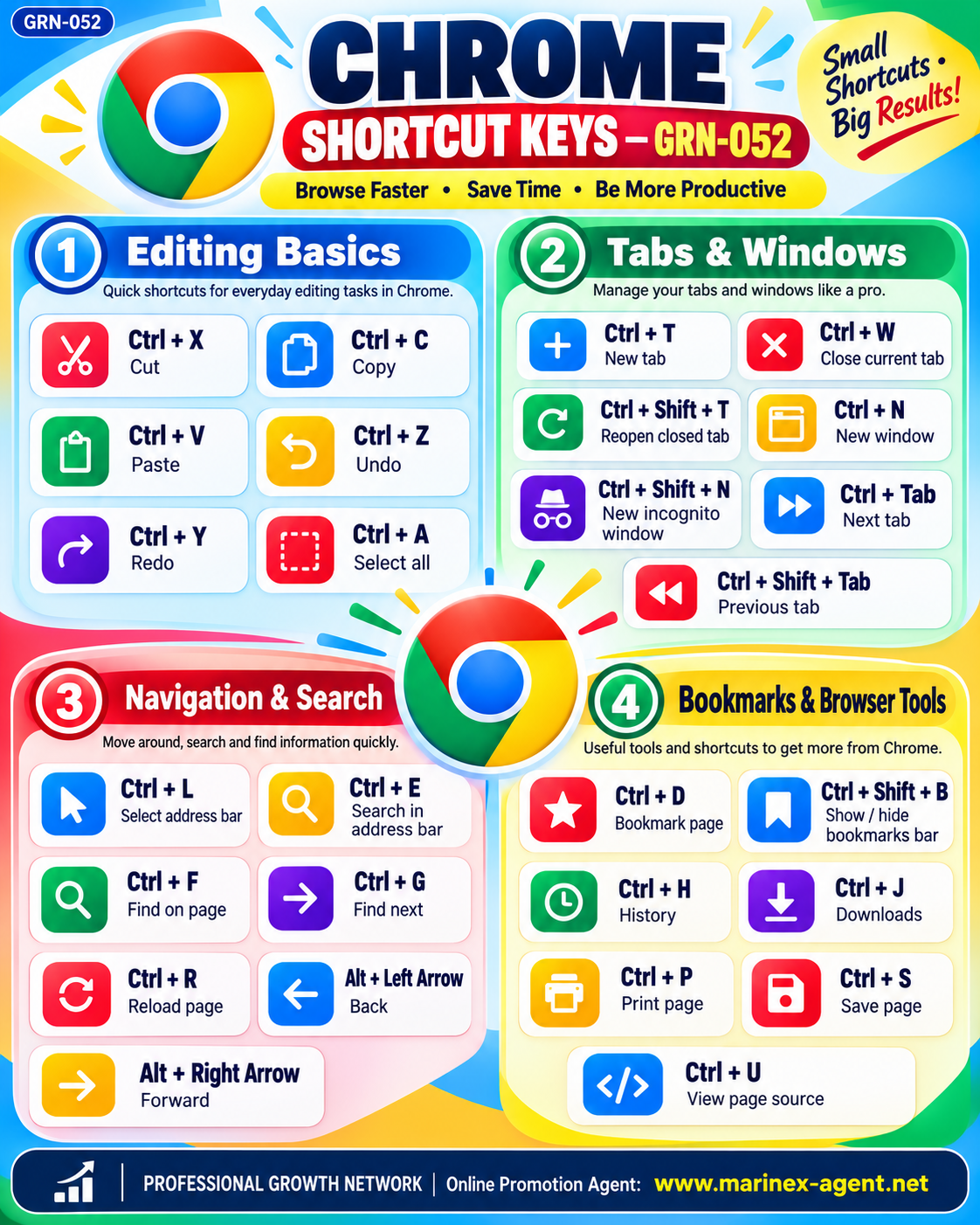
GOOGLE CHROME SHORTCUT KEYS — BROWSE FASTER,
SAVE TIME & BE MORE PRODUCTIVE
Parent Category: PROFESSIONAL GROWTH NETWORK (PGN)
Category: Computer Skills & Digital Literacy
Article Code: GRN-052
Small Shortcuts — Big Results!
Google Chrome is one of the world’s most widely used web browsers. Millions of people use it daily for communication, research, education, online shopping, business management, and professional activities.
Learning keyboard shortcuts is a simple but effective way to improve computer skills, save time, and increase productivity.
Instead of repeatedly using a mouse to navigate menus, users can perform many everyday operations by pressing just two or three keys.
This guide presents the most useful Google Chrome keyboard shortcuts for Windows computers, divided into four practical categories.
1. Editing Basics
Quick Shortcuts for Everyday Editing Tasks
These shortcuts help users work with text in website forms, emails, search fields, online documents, and other editable areas.
| Shortcut | Function |
|---|---|
| Ctrl + X | Cut selected text or content |
| Ctrl + C | Copy selected text or content |
| Ctrl + V | Paste copied or cut content |
| Ctrl + Z | Undo the previous editing action |
| Ctrl + Y | Redo an undone action in supported editing applications |
| Ctrl + A | Select all text or content in the active area |
Practical Example:
When preparing a business email in Gmail:
- Select the required text.
- Press Ctrl + C to copy it.
- Open another editable field or document.
- Press Ctrl + V to paste the copied text.
- Use Ctrl + Z to undo an accidental editing action, where supported.
Important: Editing shortcuts may behave differently depending on the website or application currently in use.
2. Tabs & Windows
Manage Your Browser Tabs and Windows Like a Professional
Modern computer users often work with several websites simultaneously.
For example, a business consultant may have Gmail, Google Drive, WordPress, Facebook, and different company websites open at the same time.
Chrome shortcuts make switching between these resources much faster.
| Shortcut | Function |
|---|---|
| Ctrl + T | Open a new tab |
| Ctrl + W | Close the current tab |
| Ctrl + Shift + T | Reopen a recently closed tab |
| Ctrl + N | Open a new Chrome window |
| Ctrl + Shift + N | Open a new Incognito window |
| Ctrl + Tab | Switch to the next tab |
| Ctrl + Shift + Tab | Switch to the previous tab |
Practical Example:
Suppose you are preparing a business proposal and need to work with several online resources.
You can:
- Press Ctrl + T to open another tab.
- Use Ctrl + Tab to move between websites.
- Press Ctrl + W to close an unnecessary tab.
- If a tab is closed accidentally, use Ctrl + Shift + T to reopen it.
Incognito Mode: An Incognito window reduces the amount of browsing information saved locally after the session. It does not make users anonymous to websites, network administrators, or internet service providers.
3. Navigation & Search
Find Information Faster and Navigate Websites Efficiently
Searching for information is one of the most common activities in Google Chrome.
The following shortcuts reduce the number of mouse movements needed when browsing websites and researching information.
| Shortcut | Function |
|---|---|
| Ctrl + L | Select the address bar |
| Ctrl + E | Start a search from the address bar |
| Ctrl + F | Find specific text on the current page |
| Ctrl + G | Find the next matching result |
| Ctrl + R | Reload the current webpage |
| Alt + Left Arrow | Return to the previous webpage |
| Alt + Right Arrow | Move forward to the next webpage |
Practical Example:
When researching a company:
- Press Ctrl + L.
- Enter the company’s website address.
- Press Enter.
- Press Ctrl + F.
- Enter a keyword such as Contact, Services, or Management.
- Press Ctrl + G to move to the next matching result.
This method is especially useful when working with long webpages, company profiles, digital directories, and online reference materials.
4. Bookmarks & Browser Tools
Useful Shortcuts for Saving, Managing, and Accessing Information
Chrome includes several tools for organizing frequently visited websites, accessing browsing history, managing downloaded files, and saving webpage content.
| Shortcut | Function |
|---|---|
| Ctrl + D | Bookmark the current webpage |
| Ctrl + Shift + B | Show or hide the bookmarks bar |
| Ctrl + H | Open browsing history |
| Ctrl + J | Open the downloads page |
| Ctrl + P | Print the current webpage |
| Ctrl + S | Save the current webpage |
| Ctrl + U | Display the webpage’s HTML source code |
Practical Example:
Imagine you discover an important article about international trade or computer technology.
You can:
- Press Ctrl + D to bookmark the article for future reference.
- Press Ctrl + P to open printing options.
- Select Save as PDF as the print destination if available.
- Save a PDF copy of the article to your computer.
- Press Ctrl + J when you need to access Chrome’s download history.
Important: Saving a webpage with Ctrl + S and printing it to PDF are different procedures. Ctrl + S normally saves the webpage in a browser-supported format, while Save as PDF creates a document suitable for reading and archiving.
5. Additional Useful Chrome Shortcuts
Beyond the shortcuts shown in the infographic, several additional keyboard combinations can help experienced users work more efficiently.
| Shortcut | Function |
|---|---|
| Ctrl + Shift + R | Reload a webpage without using cached content |
| Ctrl + 0 | Restore the default page zoom |
| Ctrl + Plus (+) | Increase page zoom |
| Ctrl + Minus (-) | Decrease page zoom |
| Ctrl + 1 through Ctrl + 8 | Switch directly to a numbered tab |
| Ctrl + 9 | Switch to the last tab |
| F11 | Enter or exit full-screen mode |
| Home | Move to the top of a webpage |
| End | Move to the bottom of a webpage |
These shortcuts are particularly valuable for professionals who regularly work with complex websites, online databases, digital platforms, and WordPress administration panels.
6. Why Keyboard Shortcuts Matter for Business
Keyboard shortcuts are not simply technical conveniences.
They are practical tools that can improve everyday business performance.
6.1. Save Time
Repeated tasks can be performed more quickly without navigating multiple menus.
6.2. Improve Productivity
Employees, entrepreneurs, and freelancers can switch between applications and information sources more efficiently.
6.3. Reduce Repetitive Mouse Actions
Frequent keyboard use can reduce unnecessary mouse movements during computer-based work.
6.4. Improve Digital Literacy
Understanding browser shortcuts helps users become more confident and independent when working with computers.
6.5. Support Professional Development
Digital skills are important for online business, international communication, remote employment, marketing, research, and entrepreneurship.
7. Learning Strategy — Practice Every Day
The easiest way to remember keyboard shortcuts is to use them regularly.
Recommended Learning Plan:
- Day 1: Practice copying, pasting, cutting, and selecting text.
- Day 2: Practice opening, closing, and switching between tabs.
- Day 3: Practice searching within webpages and navigating browser history.
- Day 4: Practice bookmarks, downloads, printing, and saving pages.
- Day 5: Review all shortcuts and apply them during your normal computer activities.
Begin with five frequently used shortcuts and gradually add more as they become familiar.
Remember:
Regular Practice Creates Strong Digital Skills.
Conclusion
Google Chrome keyboard shortcuts are among the simplest tools for improving computer efficiency and digital literacy.
They help students, entrepreneurs, office employees, business consultants, and other professionals navigate the internet more effectively.
Even small improvements in everyday computer operations can produce significant long-term benefits.
Learn • Practice • Improve • Grow
Small Shortcuts — Big Results!
PROFESSIONAL GROWTH NETWORK (PGN)
Online Promotion Agent: www.marinex-agent.net
Article Code: GRN-052