
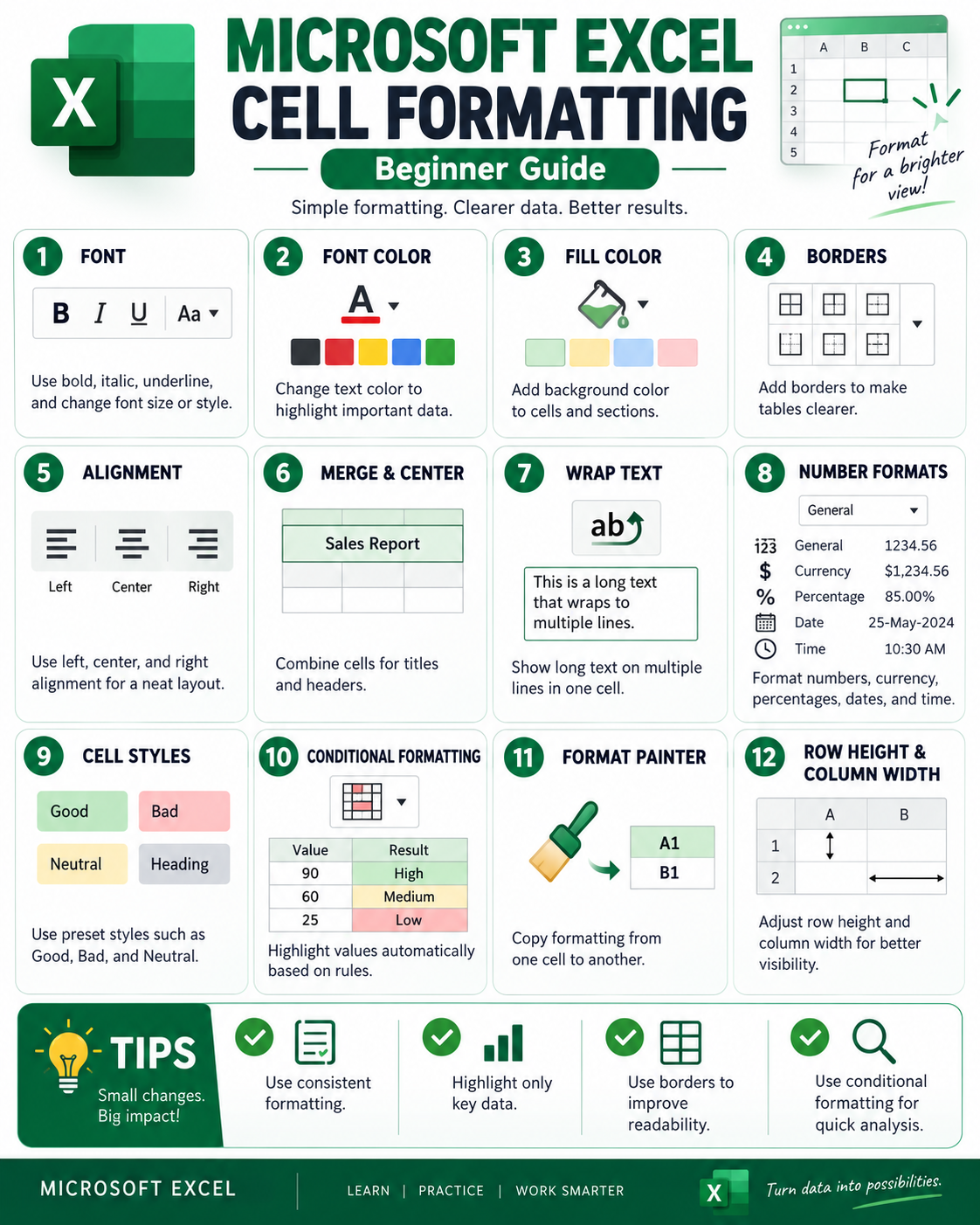
MICROSOFT EXCEL: CELL FORMATTING — BEGINNER GUIDE
OUR REF NO: WDT-007
Cell formatting is one of the basic skills every Excel user should understand. Correct formatting makes a worksheet easier to read, improves data presentation, and helps important information stand out.
1. Font
Excel allows you to change the appearance of text inside a cell.
You can use:
- Bold
- Italic
- Underline
- Different font styles
- Different font sizes
Font formatting is useful for headings, totals, important notes, and key figures.
2. Font Color
Font color helps highlight important information.
For example:
- red for warnings;
- green for positive results;
- blue for informational data.
Use colors carefully so the worksheet remains professional and easy to read.
3. Fill Color
Fill Color changes the background color of a cell.
It can be used to:
- highlight headings;
- separate sections;
- identify important values;
- improve the visual structure of a table.
4. Borders
Borders help separate cells and organize information.
Excel allows you to add:
- top borders;
- bottom borders;
- left and right borders;
- all borders;
- thicker or different border styles.
Borders are especially useful when creating tables and reports.
5. Alignment
Text and numbers can be aligned inside a cell.
Main options:
- Left
- Center
- Right
You can also control vertical alignment.
Correct alignment makes tables easier to understand.
6. Merge & Center
Merge & Center combines several cells into one larger cell and centers the content.
This function is often used for:
- table titles;
- section headings;
- report headers.
It should be used carefully because merged cells can sometimes make sorting and data processing more difficult.
7. Wrap Text
Wrap Text allows long text to appear on several lines inside the same cell.
This is useful when:
- a column is narrow;
- the text is long;
- you do not want to increase the column width.
8. Number Formats
Excel supports different number formats, including:
- General
- Number
- Currency
- Percentage
- Date
- Time
Choosing the correct number format is very important because it determines how the value is displayed.
For example:
0.25 can be displayed as 25%
or
1234.56 can be displayed as $1,234.56
9. Cell Styles
Excel includes predefined Cell Styles.
Examples:
- Good
- Bad
- Neutral
- Calculation
- Check Cell
These styles allow users to format cells quickly without manually adjusting every setting.
10. Conditional Formatting
Conditional Formatting automatically changes the appearance of cells depending on their values.
For example:
| Marks | Result |
|---|---|
| 90–100 | Excellent |
| 70–89 | Good |
| 50–69 | Average |
| 0–49 | Poor |
This function is very useful for:
- reports;
- financial analysis;
- performance monitoring;
- identifying high or low values.
11. Format Painter
Format Painter copies formatting from one cell and applies it to another.
It can copy:
- fonts;
- colors;
- borders;
- number formats;
- alignment.
This saves time when the same formatting is required in several places.
12. Row Height & Column Width
Excel allows users to adjust the size of rows and columns.
You can:
- increase or reduce row height;
- increase or reduce column width;
- use AutoFit to automatically adjust the size to the content.
Correct row and column sizing improves readability.
Practical Formatting Tips
- Use the same font throughout the worksheet.
- Highlight only important information.
- Avoid using too many colors.
- Use borders to improve table readability.
- Keep headings consistent.
- Use conditional formatting to analyze data quickly.
- Adjust column widths so text and numbers are clearly visible.
Conclusion
Cell formatting is not only about appearance. Good formatting makes Excel worksheets easier to read, understand, analyze, and use.
For beginners, mastering Font, Fill Color, Borders, Alignment, Number Formats, Conditional Formatting, and Format Painter provides a strong foundation for working confidently with Microsoft Excel.