
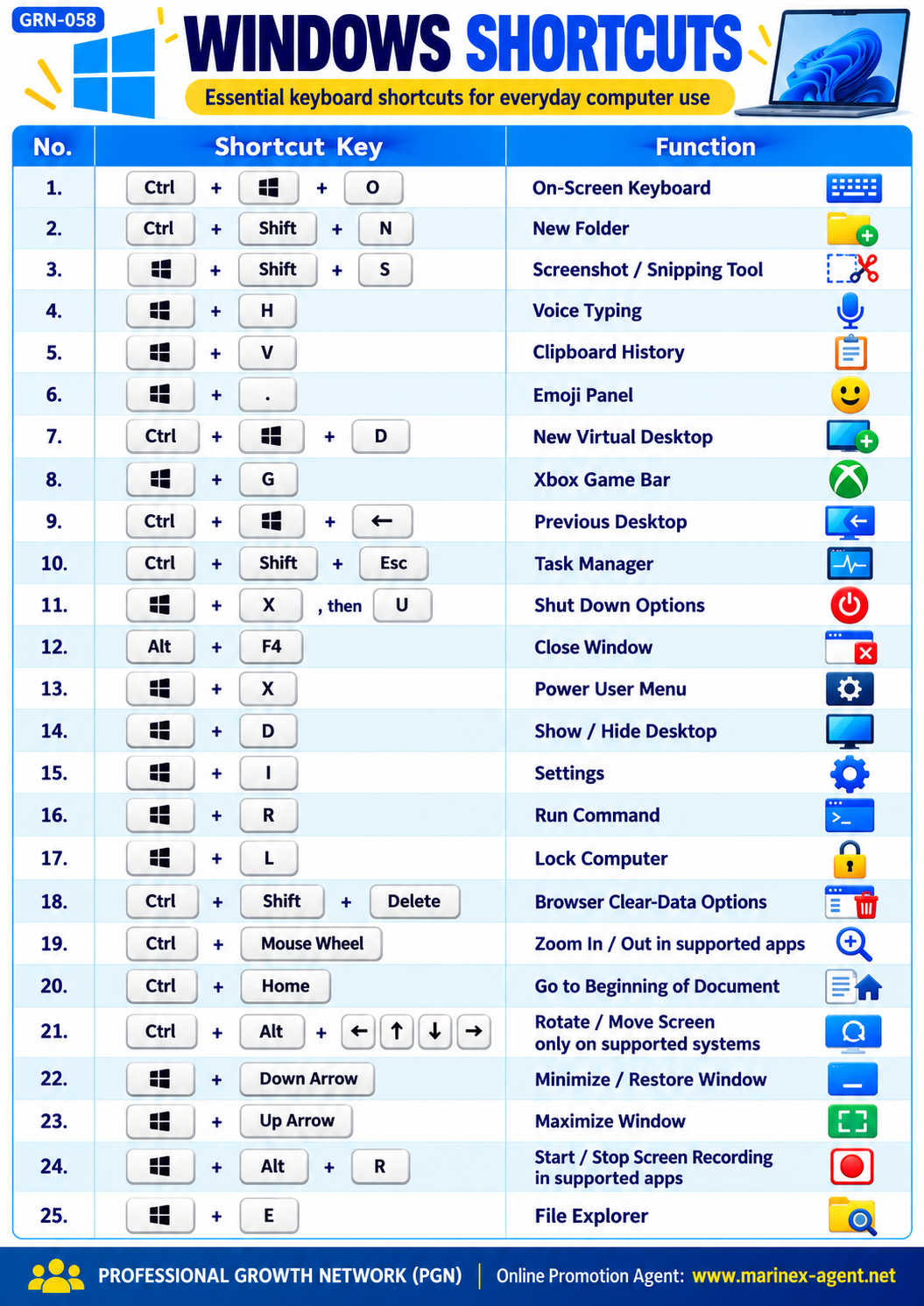
WINDOWS SHORTCUTS — 25 ESSENTIAL KEYBOARD COMMANDS
Parent Category: PROFESSIONAL GROWTH NETWORK (PGN)
Category: Computer Skills & Digital Literacy
Article Code: GRN-058
Save Time • Work Smarter • Improve Your Computer Skills
Windows keyboard shortcuts are useful tools for improving productivity, managing files, navigating applications, and performing everyday computer tasks.
Instead of using a mouse to search through menus, users can execute many commands by pressing two or three keys.
This article introduces 25 useful keyboard shortcuts for Windows 10 and Windows 11, including file management, screenshots, virtual desktops, accessibility features, and system controls.
Important: The Win key refers to the Windows logo key on your keyboard. Some shortcuts depend on the Windows version, active application, or computer hardware.
1. Open the On-Screen Keyboard
Shortcut: Win + Ctrl + O
Opens or closes the Windows On-Screen Keyboard.
This feature is useful when:
- A physical keyboard is unavailable.
- Certain keyboard keys are not functioning.
- Users need an alternative method of entering text.
2. Create a New Folder
Shortcut: Ctrl + Shift + N
Creates a new folder in Windows File Explorer or on the desktop.
Practical Example: Organize business correspondence, contracts, images, and documents into separate folders.
3. Take a Screenshot
Shortcut: Win + Shift + S
Opens the Windows screen capture interface.
Users can capture:
- A selected rectangular area.
- A freeform area.
- A specific window.
- The entire screen.
Practical Example: Capture information from a website, business document, or online presentation.
4. Activate Voice Typing
Shortcut: Win + H
Opens Windows Voice Typing in a supported text field.
This feature allows users to dictate text instead of typing manually.
Practical Example: Prepare notes, emails, or document drafts using voice input.
5. Open Clipboard History
Shortcut: Win + V
Opens Windows Clipboard History.
This tool allows users to access recently copied text and images, provided Clipboard History is enabled.
Practical Example: Copy several pieces of information from different websites and paste them when needed.
6. Open the Emoji Panel
Shortcut: Win + . (Period)
Opens the Windows emoji and symbols panel.
Users can insert emojis and other supported symbols into documents, emails, and messages.
7. Create a New Virtual Desktop
Shortcut: Win + Ctrl + D
Creates another virtual desktop.
Virtual desktops allow users to organize different tasks into separate workspaces.
Practical Example:
- Desktop 1 — Business correspondence.
- Desktop 2 — WordPress website management.
- Desktop 3 — Research and technical activities.
8. Open Xbox Game Bar
Shortcut: Win + G
Opens Xbox Game Bar on supported Windows systems.
It provides access to features such as performance monitoring, audio controls, and screen capture.
Some features require appropriate settings and supported hardware.
9. Switch to the Previous Virtual Desktop
Shortcut: Win + Ctrl + Left Arrow
Moves to the virtual desktop on the left.
To move to the next virtual desktop, use:
Win + Ctrl + Right Arrow
This is useful when working with several independent projects.
10. Open Task Manager
Shortcut: Ctrl + Shift + Esc
Opens Windows Task Manager directly.
Task Manager helps users:
- View running applications.
- Monitor CPU and memory usage.
- Identify unresponsive programs.
- Review system performance.
- Manage startup applications.
Practical Example: Check which application is consuming excessive computer resources.
11. Access Windows Shut Down Options
Shortcut: Win + X, then U
Opens the Power User menu and then the Shut Down or Sign Out submenu on supported English-language Windows configurations.
Depending on the menu, additional keys can select Shut Down, Restart, or Sleep.
Important: Letter-based menu shortcuts can differ according to the Windows interface language.
12. Close the Current Window
Shortcut: Alt + F4
Closes the currently active application window.
If no application window is active and the desktop has focus, this shortcut may open the Windows shutdown dialog.
Practical Example: Close a completed document or application without using the mouse.
13. Open the Power User Menu
Shortcut: Win + X
Opens a menu containing important Windows management tools.
Depending on the Windows version, these may include:
- Device Manager.
- Disk Management.
- Terminal.
- Settings.
- File Explorer.
- Task Manager.
- Power Options.
14. Show or Hide the Desktop
Shortcut: Win + D
Minimizes or restores application windows to show or hide the desktop.
Practical Example: Quickly access files or shortcuts located on the desktop.
15. Open Windows Settings
Shortcut: Win + I
Opens the Windows Settings application.
Users can manage:
- Network connections.
- Bluetooth devices.
- Display settings.
- Windows Update.
- Personalization.
- Privacy and security settings.
16. Open the Run Command
Shortcut: Win + R
Opens the Windows Run dialog.
Users can enter commands to open applications, folders, and system utilities.
Examples:
notepad— Open Notepad.calc— Open Calculator.control— Open Control Panel.shell:Downloads— Open the Downloads folder.
17. Lock Your Computer
Shortcut: Win + L
Immediately locks the current Windows session.
This is an important security feature when leaving a computer unattended.
Business Tip: Lock your computer whenever you step away from your workplace, especially when confidential documents are open.
18. Open Browser Clear-Data Options
Shortcut: Ctrl + Shift + Delete
Opens the browsing-data deletion interface in Google Chrome and several other browsers.
Depending on the browser, users can select:
- Browsing history.
- Cached images and files.
- Cookies and site data.
- Other stored browsing information.
Important: Deleting cookies may sign you out of websites. Review the selected data before confirming deletion.
19. Zoom In or Out Using the Mouse Wheel
Shortcut: Ctrl + Mouse Wheel
Hold Ctrl while rotating the mouse wheel to change zoom levels in supported applications.
This is especially useful in:
- Google Chrome.
- Microsoft Word.
- PDF viewers.
- Other compatible programs.
Practical Example: Increase webpage zoom when reading small text or decrease it when reviewing a large layout.
20. Move to the Beginning of a Document
Shortcut: Ctrl + Home
Moves the cursor to the beginning of a document or scrolls to the top in supported applications.
Related Shortcut: Ctrl + End
Moves to the end of a document or webpage in supported applications.
Practical Example: Navigate quickly through long WordPress articles or business documents.
21. Rotate the Display on Supported Systems
Shortcut: Ctrl + Alt + Arrow Keys
Some graphics drivers support screen rotation through these combinations.
For example, on certain systems:
- Ctrl + Alt + Up Arrow — Normal orientation.
- Ctrl + Alt + Down Arrow — Inverted orientation.
- Ctrl + Alt + Left/Right Arrow — Rotated orientation.
Important: These are not universal Windows shortcuts. Availability depends on the graphics driver and its settings.
The more reliable method is:
Settings → System → Display → Display Orientation
22. Minimize the Current Window
Shortcut: Win + Down Arrow
Reduces the size or minimizes the active window, depending on its current state.
This shortcut helps users organize multiple applications on the desktop.
23. Maximize the Current Window
Shortcut: Win + Up Arrow
Maximizes the active application window.
Practical Example: Expand Google Chrome, Word, or another application to use the available screen space.
24. Start or Stop Screen Recording
Shortcut: Win + Alt + R
Starts or stops recording through Xbox Game Bar when the feature is available and the active application supports capture.
This can be useful for:
- Software demonstrations.
- Educational tutorials.
- Recording application activities.
- Preparing technical instructions.
Important: Xbox Game Bar does not support recording every Windows interface or desktop activity.
25. Open Windows File Explorer
Shortcut: Win + E
Opens Windows File Explorer.
File Explorer is used for managing:
- Documents.
- Downloads.
- Images.
- Videos.
- Folders.
- External storage devices.
Practical Example: Access your business archive, organize documents, or locate downloaded files.
26. The Most Useful Shortcuts for Everyday Business
For entrepreneurs, office workers, students, and professionals, several shortcuts are particularly valuable.
| Shortcut | Business Application |
|---|---|
| Win + E | Open File Explorer |
| Ctrl + Shift + N | Create a new folder |
| Win + Shift + S | Capture screenshots |
| Win + V | Access Clipboard History |
| Win + D | Show the desktop |
| Win + L | Lock the computer |
| Ctrl + Shift + Esc | Open Task Manager |
| Win + I | Open Windows Settings |
| Ctrl + Home | Jump to the beginning |
| Ctrl + End | Jump to the end |
Learning these basic combinations can improve efficiency during everyday computer activities.
27. How to Learn Keyboard Shortcuts Effectively
Step 1 — Start with Five Commands
Choose the shortcuts you use most frequently.
Step 2 — Practice Every Day
Repeat them during normal computer work.
Step 3 — Group Similar Commands
For example:
- File Management.
- Window Management.
- Screenshots.
- Security.
- System Tools.
Step 4 — Gradually Expand Your Knowledge
Learn additional commands only after becoming comfortable with the basic shortcuts.
Step 5 — Apply Them to Real Tasks
Practice when preparing emails, managing documents, researching information, or maintaining websites.
Key Principle:
Small Improvements in Everyday Computer Skills Can Create Significant Long-Term Productivity Benefits.
28. Computer Skills & Professional Growth Network
The Professional Growth Network (PGN) encourages the development of practical digital skills, professional knowledge, and international business cooperation.
Computer literacy is important for:
- Business management.
- Online communication.
- Digital entrepreneurship.
- Remote employment.
- Website development.
- International trading.
- Professional education.
- Personal productivity.
Through Marinex-Agent, we promote the use of digital technologies to help individuals and small businesses develop their professional online presence.
Our Main Principle:
First, Promote Yourself. Then, Promote Your Products or Services.
Learning essential computer skills is an important step toward becoming more independent, productive, and professionally competitive.
Conclusion
Windows keyboard shortcuts provide simple and practical ways to improve everyday computer efficiency.
They help users manage files, navigate applications, capture information, access system tools, and organize their work more effectively.
You do not need to memorize every shortcut immediately.
Begin with the most useful combinations and practice them regularly.
LEARN • PRACTICE • IMPROVE • GROW
PROFESSIONAL GROWTH NETWORK (PGN)
Online Promotion Agent: www.marinex-agent.net
Article Code: GRN-058