
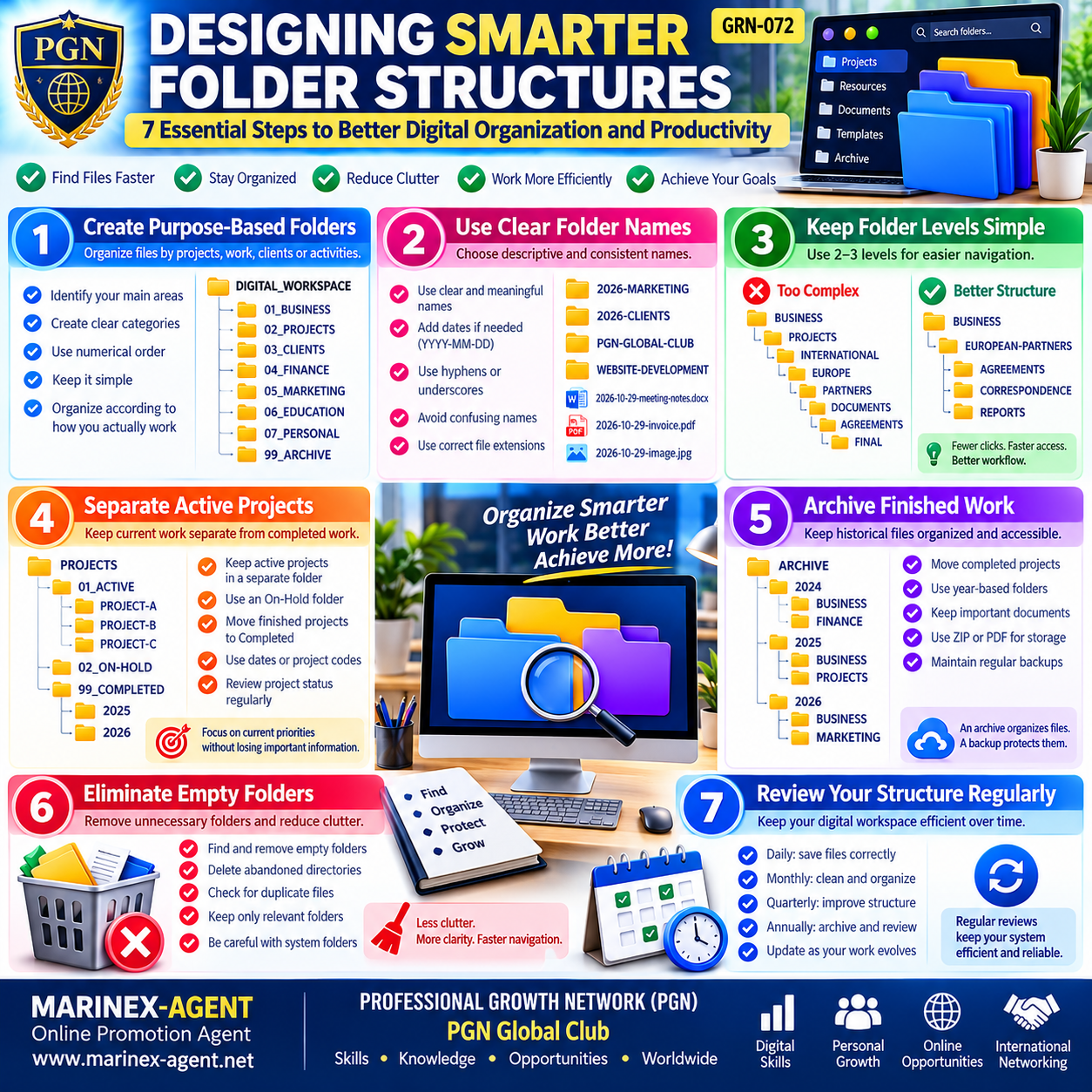
Designing Smarter Folder Structures:
7 Essential Steps to Better Digital Organization and Productivity
Parent Category: PROFESSIONAL GROWTH NETWORK (PGN)
Category: Computer Skills & Digital Literacy / Personal Growth & Self-Development
Article Code: GRN-072
Introduction: Build a Smarter Digital Workspace
In today’s digital world, effective file organization is an essential professional skill.
Every day, individuals and businesses create, receive, download, edit, and store large amounts of digital information.
These files may include business correspondence, contracts, presentations, photographs, invoices, reports, educational materials, customer records, and other important documents.
Without a clear organizational system, even a powerful computer can become an inefficient working environment.
Employees and business owners may waste valuable time searching for documents, accidentally create duplicate files, or lose track of important information.
A well-designed folder structure transforms a collection of files into an organized, accessible, and manageable digital workspace.
This article explains seven practical principles for creating an efficient folder structure on Windows computers, cloud storage platforms, and other digital systems.
1. Create Purpose-Based Folders
The first principle of effective digital organization is to group files according to their purpose.
Instead of placing documents randomly, organize them into clearly defined categories based on projects, activities, departments, clients, or professional responsibilities.
Why Purpose-Based Organization Matters
A computer may contain thousands of files, but most documents belong to a relatively small number of meaningful categories.
For example, an independent professional may work with:
- Business projects.
- Customer correspondence.
- Financial documentation.
- Marketing materials.
- Personal documents.
- Educational resources.
- Archived projects.
Creating separate folders for these activities makes information easier to locate and manage.
Example of a Basic Folder Structure
DIGITAL_WORKSPACE
│
├── 01_BUSINESS
├── 02_PROJECTS
├── 03_CLIENTS
├── 04_FINANCE
├── 05_MARKETING
├── 06_EDUCATION
├── 07_PERSONAL
└── 99_ARCHIVE
Each folder has a specific purpose.
The numerical prefixes help maintain a predictable folder order when sorting alphabetically by name.
Practical Recommendations
Step 1: Identify your main areas of activity.
Step 2: Create a separate folder for each important category.
Step 3: Avoid overlapping categories whenever possible.
Step 4: Establish a clear rule for where new documents should be saved.
Step 5: Review your structure when new activities or projects appear.
Productivity principle: Organize information according to how you actually work, not according to arbitrary file classifications.
2. Use Clear and Consistent Folder Names
Even a carefully designed folder structure becomes ineffective if its folders have confusing or inconsistent names.
A clear naming convention makes files easier to identify, search, share, and archive.
Common Naming Problems
Examples of poorly organized names include:
- New Folder.
- Documents 2.
- Final Version.
- Final Version NEW.
- Important Stuff.
- Miscellaneous.
- Project Copy.
Such names provide little meaningful information.
They also make it difficult to determine which documents are current and which should be archived.
Recommended Naming Conventions
Use descriptive names that clearly identify the content.
For example:
2026-CLIENT-CONTRACTS

2026-MARKETING-CAMPAIGNS

PGN-GLOBAL-CLUB

WEBSITE-DEVELOPMENT

FINANCIAL-REPORTS

BUSINESS-CORRESPONDENCE
Include Dates When Appropriate
The international date format YYYY-MM-DD is particularly useful.
For example:
2026-10-29-project-proposal.docx

2026-10-29-invoice.pdf

2026-10-29-meeting-notes.txt
This format makes chronological sorting easier.
Use File Extensions Correctly
Common file extensions include:
.pdf— Portable Document Format..docx— Microsoft Word document..xlsx— Microsoft Excel workbook..pptx— PowerPoint presentation..jpg— JPEG image..png— PNG image..zip— Compressed archive.
Avoid Problematic Characters
For maximum compatibility across Windows, websites, and cloud platforms, use simple filenames containing letters, numbers, hyphens, and underscores.
Windows does not permit certain characters in filenames, including:
\ / : * ? " < > |Practical Recommendations
Use a consistent system across your computer and cloud storage.
For international professional activities, English filenames can simplify collaboration with partners in different countries.
Productivity principle: A good filename should explain what the file contains without requiring you to open it.
3. Keep Folder Levels Simple
Creating too many nested folders can make navigation unnecessarily complicated.
A user may need to open six or seven folders before reaching a particular document.
This wastes time and increases the risk of saving files in the wrong location.
Example of an Overcomplicated Structure
BUSINESS
└── PROJECTS
    └── INTERNATIONAL
        └── EUROPE
            └── PARTNERS
                └── DOCUMENTS
                    └── AGREEMENTS
                        └── FINAL
Although such a structure may appear logical, it can become inconvenient in everyday work.
A Simpler Alternative
BUSINESS
└── EUROPEAN-PARTNERS
    ├── AGREEMENTS
    ├── CORRESPONDENCE
    └── REPORTS
The second example provides quicker access to frequently used documents.
Recommended Folder Depth
For many everyday workflows, two or three folder levels are sufficient.
However, this is a practical guideline rather than a technical limitation.
Large organizations, complex engineering projects, and regulated industries may legitimately require deeper structures.
Practical Recommendations
Step 1: Identify frequently accessed documents.
Step 2: Reduce unnecessary nesting.
Step 3: Use descriptive folder names.
Step 4: Keep important active folders easy to access.
Step 5: Avoid creating new subfolders for only one or two files unless necessary.
Productivity principle: The simplest structure that reliably organizes your documents is usually the most effective.
4. Separate Active Projects from Completed Work
One of the most common organizational problems is mixing current projects with documents from previous years.
Over time, active workspaces become crowded with outdated contracts, completed assignments, and unnecessary working files.
Separating active and completed projects helps maintain clarity.
Recommended Structure
PROJECTS
│
├── 01_ACTIVE
│   ├── PROJECT-A
│   ├── PROJECT-B
│   └── PROJECT-C
│
├── 02_ON-HOLD
│
└── 99_COMPLETED
    ├── 2025
    └── 2026
Active Projects
The Active folder should contain projects that currently require your attention.
Examples include:
- Ongoing customer assignments.
- Website development.
- Current marketing campaigns.
- Business proposals under discussion.
- Contracts being negotiated.
Completed Projects
Once a project is finished, move its documentation into the Completed folder or an appropriate archive.
This preserves historical information while keeping your active workspace manageable.
Projects on Hold
A separate On-Hold folder can be useful for temporarily suspended projects.
Such projects are not completed, but they do not require daily attention.
Practical Recommendations
Step 1: Identify all active projects.
Step 2: Move completed projects out of the active workspace.
Step 3: Keep temporarily suspended projects separate.
Step 4: Use dates or project codes for easy identification.
Step 5: Review the status of your projects periodically.
Productivity principle: Keep your attention focused on current priorities without losing access to historical information.
5. Archive Finished Work
Archiving is an important part of professional information management.
Completed projects, historical correspondence, invoices, contracts, and reports may remain valuable for many years.
However, keeping all these files in active folders creates unnecessary clutter.
What Should Be Archived?
Typical archive materials include:
- Completed business projects.
- Previous-year financial records.
- Historical correspondence.
- Expired contracts that must be retained.
- Old presentations.
- Completed educational programs.
- Previous marketing campaigns.
- Important historical versions of documents.
Example of an Archive Structure
ARCHIVE
│
├── 2024
│   ├── BUSINESS
│   └── FINANCE
│
├── 2025
│   ├── BUSINESS
│   └── FINANCE
│
└── 2026
    ├── BUSINESS
    ├── PROJECTS
    └── MARKETING
Archive Formats
Depending on the type of information, documents may be archived in their original format or packaged into compressed ZIP files.
PDF can be useful for preserving readable copies of completed reports and publications.
However, editable originals should also be retained whenever future modification or restoration may be necessary.
Archives Are Not Automatically Backups
There is an important distinction:
An archive organizes historical information. A backup protects information against accidental deletion, corruption, hardware failure, and other forms of data loss.
An archive stored on only one computer can still be lost.
Important files should therefore be protected by a reliable backup strategy.
The 3-2-1 Backup Principle
A commonly recommended approach is:
- Maintain three copies of important information.
- Use two different types of storage media or storage systems.
- Keep at least one copy in a separate physical location.
Cloud storage can be part of this strategy, but synchronization alone is not always equivalent to an independent backup.
Productivity principle: Archive completed work systematically and protect important information with independent backups.
6. Eliminate Empty and Unnecessary Folders
Over time, computers accumulate empty folders, duplicate directories, abandoned projects, and temporary files.
These unnecessary elements make navigation more complicated.
Common Sources of Digital Clutter
- Automatically created empty folders.
- Old installation directories.
- Duplicate project folders.
- Abandoned working directories.
- Temporary download folders.
- Unused presentation folders.
- Redundant copies of documents.
How to Clean Your Folder Structure
Step 1: Review the contents of your main working directories.
Step 2: Identify empty folders.
Step 3: Determine whether these folders are still required.
Step 4: Remove unnecessary directories.
Step 5: Check for duplicate files.
Step 6: Move important historical documents into the archive.
Important Safety Precautions
Do not delete folders simply because they appear empty or unfamiliar.
Some folders may be required by Windows, installed applications, synchronization programs, or automated processes.
In particular, avoid deleting unfamiliar directories inside system locations such as:
C:\Windows

C:\Program Files

C:\ProgramData
Clean up your own document and project folders rather than modifying system directories without understanding their purpose.
Duplicate Files
Duplicate files can consume storage space and create confusion.
However, documents with similar filenames are not necessarily identical.
Before deleting duplicates, compare their content, modification dates, and importance.
Productivity principle: Less clutter means faster navigation, fewer mistakes, and greater clarity.
7. Review Your Folder Structure Regularly
Digital organization is not a one-time activity.
As your professional responsibilities grow, your folder system should evolve.
New projects appear, old activities are completed, and information management requirements change.
Regular reviews prevent your digital workspace from becoming disorganized.
Recommended Review Schedule
Daily or Weekly
- Save new files in the correct folders.
- Clear unnecessary temporary downloads.
- Check active working documents.
- Maintain consistent naming conventions.
Monthly
- Review active project folders.
- Move completed work into appropriate archives.
- Identify duplicate files.
- Remove unnecessary directories.
- Check whether important files are backed up.
Quarterly
- Evaluate whether the main folder structure still supports your activities.
- Improve confusing folder names.
- Review archive organization.
- Check access permissions for shared folders.
Annually
- Archive completed annual projects.
- Review document retention requirements.
- Verify that important archives remain accessible.
- Reassess backup and storage arrangements.
Four Questions for a Quick Folder Audit
Ask yourself:
- Is this folder still relevant?
- Can I find the required document quickly?
- Are there unnecessary duplicates?
- Is important information properly archived and protected?
If the answers reveal problems, revise the structure accordingly.
Productivity principle: Small, regular improvements prevent major organizational problems.
8. Using Windows File Explorer More Efficiently
A well-designed folder system becomes even more effective when combined with Windows productivity tools.
Windows File Explorer provides several features that simplify everyday navigation.
Useful Keyboard Shortcuts
| Shortcut | Function |
|---|---|
| Win + E | Open File Explorer |
| Ctrl + Shift + N | Create a new folder |
| F2 | Rename the selected file or folder |
| Ctrl + C | Copy |
| Ctrl + V | Paste |
| Ctrl + X | Cut |
| Ctrl + Z | Undo |
| Alt + Left Arrow | Return to the previous location |
| Alt + Up Arrow | Move to the parent folder |
| Ctrl + A | Select all items |
Use File Explorer Search
Windows allows you to search for files by name and other properties.
Examples:
*.pdfSearches for PDF documents in the selected search scope.
GRN-072Searches for items matching the article code.
*.xlsxSearches for Excel workbooks.
Use Quick Access
Frequently used folders can be pinned to Quick Access in Windows 10.
This is particularly useful for folders containing active projects, business documents, and frequently accessed correspondence.
Sort Files Logically
Common sorting options include:
- Name.
- Date modified.
- Type.
- Size.
Choosing the appropriate sorting method can significantly reduce document search time.
9. Folder Organization for Business and International Networking
For independent professionals, entrepreneurs, and international business networks, digital organization has particular importance.
A professional may simultaneously manage different customers, partners, countries, projects, and communication channels.
Without an effective structure, documents can quickly become difficult to control.
Example: PROFESSIONAL GROWTH NETWORK
A practical folder system for an international professional network might look like this:
PGN-GLOBAL-CLUB
│
├── 01-ADMINISTRATION
│
├── 02-MEMBERS
│
├── 03-INTERNATIONAL-PARTNERS
│
├── 04-BUSINESS-PROJECTS
│
├── 05-WEB-PRESENTATIONS
│
├── 06-MARKETING
│
├── 07-CORRESPONDENCE
│
├── 08-ARTICLES
│
├── 09-INFOGRAPHICS
│
└── 99-ARCHIVE
This structure allows each major activity to remain independent while supporting the overall organization.
Organizing Blog Articles
A professional blog may contain hundreds of articles across different categories.
Article codes can provide a reliable identification system.
For example:
BLOG-ARTICLES
│
├── GRN-070-IONOS
│
├── GRN-071-CANVA-MONETIZATION
│
└── GRN-072-FOLDER-STRUCTURES
Each article folder may contain:
GRN-072-FOLDER-STRUCTURES
│
├── article-grn-072.docx
├── article-grn-072.pdf
├── infographic-grn-072.png
└── references
Such a system makes future editing, publication, backup, and restoration easier.
Separating Internal and Public Information
Not all organizational documents should be publicly accessible.
Sensitive information, confidential agreements, financial records, and personal data require appropriate access restrictions.
Shared cloud folders should therefore be organized according to both their purpose and their confidentiality requirements.
Business principle: Professional information management supports trust, operational efficiency, and international cooperation.
10. Integrating Local Storage, Cloud Services, and Backups
Modern professionals often work with several devices and storage systems.
These may include:
- Desktop computers.
- Laptops.
- Smartphones.
- External storage drives.
- Network storage.
- Cloud platforms.
A consistent folder structure can make information easier to manage across these environments.
Local Storage
Local storage provides direct access to documents on a computer.
It is particularly useful for large files, frequently used working materials, and situations with limited Internet connectivity.
Cloud Storage
Services such as Google Drive, Microsoft OneDrive, and Dropbox can support synchronization and collaboration.
However, access to sensitive documents should be controlled through appropriate permissions and account security settings.
External Backup Storage
External drives can provide additional protection for important information.
For stronger protection, backup drives should not remain continuously connected to the same computer.
A Combined Approach
A practical system may consist of:
Local Working Files → Cloud Synchronization → Independent Backup → Historical Archive.
Each component serves a different purpose.
11. From Digital Organization to Professional Productivity
An organized computer does more than save time.
It supports better decision-making, reduces operational errors, and makes professional work easier to manage.
Consider two professionals working on the same project.
The first stores files randomly across multiple locations.
The second uses clearly named folders, consistent filenames, structured archives, and regular backups.
When an urgent request arrives, the second professional can usually locate the necessary document more efficiently.
Benefits of Better Digital Organization
Faster Access
Important documents are easier to find.
Reduced Clutter
Unnecessary files and directories no longer distract from active work.
Improved Workflow
Current projects remain clearly separated from completed activities.
Better Collaboration
Partners and colleagues can understand shared folder structures more easily.
Improved Information Protection
Important documents are easier to identify for backup and access control.
Greater Professional Reliability
An organized information system helps reduce confusion and unnecessary delays.
12. A Practical Seven-Day Folder Organization Plan
A simple seven-day program can help establish better digital habits.
Day 1 — Evaluate Your Existing Files
Review your main document folders and identify major categories.
Day 2 — Create Your Main Folder Structure
Build a small number of purpose-based folders.
Day 3 — Standardize Folder Names
Apply clear and consistent naming conventions.
Day 4 — Organize Active Projects
Separate current work from completed assignments.
Day 5 — Create an Archive
Move historical documents into organized archive folders.
Day 6 — Remove Unnecessary Clutter
Review empty folders, duplicates, and obsolete temporary files carefully.
Day 7 — Review and Protect Your System
Test whether important documents can be found quickly.
Check your backup arrangements and establish a regular review schedule.
The objective is not to create a perfect folder structure in one week, but to establish a reliable system that can be maintained over time.
Conclusion: Smart Organization Creates Better Productivity
A well-organized digital workspace is an important foundation for professional efficiency.
The seven essential principles are straightforward:
- Create Purpose-Based Folders — Organize documents according to meaningful activities.
- Use Clear Folder Names — Make information easy to identify.
- Keep Folder Levels Simple — Avoid unnecessary navigation.
- Separate Active Projects — Focus attention on current work.
- Archive Finished Work — Preserve important historical information.
- Eliminate Unnecessary Folders — Reduce digital clutter.
- Review Your Structure Regularly — Maintain long-term organizational efficiency.
When these principles are combined with effective file naming, modern storage tools, appropriate security controls, and reliable backups, even a complex digital workspace becomes easier to manage.
Within the PROFESSIONAL GROWTH NETWORK (PGN), we consider digital organization an essential component of computer literacy, personal development, and professional growth.
Whether you are a student, freelancer, entrepreneur, consultant, or manager of an international business network, the ability to organize information effectively can help you work more confidently and productively.
Organize Smarter. Find Files Faster. Work More Efficiently. Grow Professionally.
PROFESSIONAL GROWTH NETWORK (PGN)
PGN Global Club
Online Promotion Agent: https://www.marinex-agent.net/
Article Code: GRN-072