
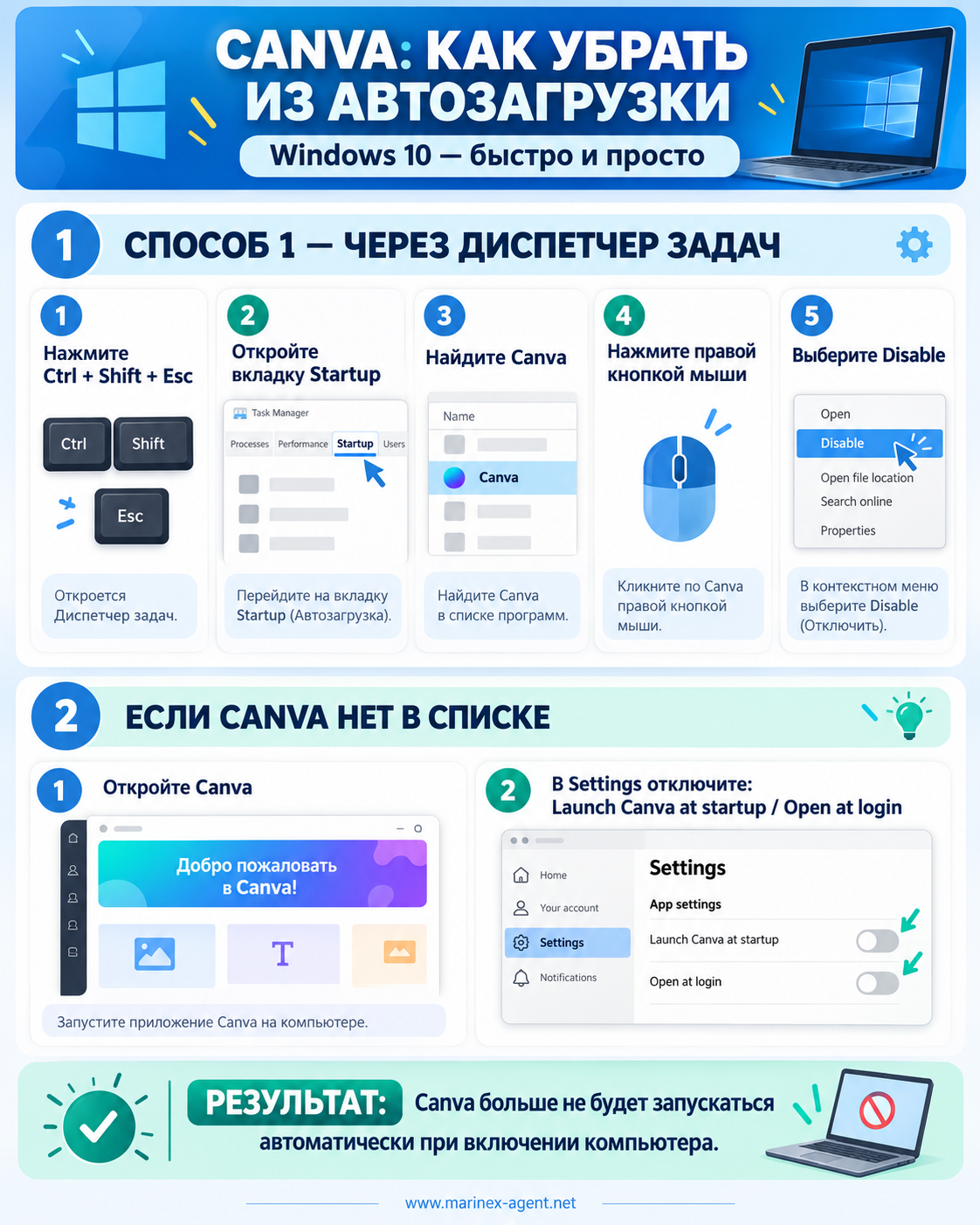
How to Remove Canva from Windows 10 Startup
OUR REF NO: WDT-010
Sometimes desktop applications are automatically added to Windows Startup and begin launching every time the computer is turned on.
If you use Canva Desktop but do not want it to open automatically with Windows 10, you can disable this behavior in just a few steps.
1. Open Task Manager
Press:
Ctrl + Shift + Esc
This will open Task Manager.
2. Open the Startup Tab
In Task Manager, select:
Startup
This section shows the programs that start automatically together with Windows.
3. Find Canva
Look through the list of applications and find:
Canva
4. Disable Canva Startup
Right-click on Canva and select:
Disable
After this, Canva should no longer launch automatically when Windows starts.
5. If Canva Is Not Listed
If Canva does not appear in the Windows Startup list, open the Canva desktop application itself.
Go to:
Canva → Settings
Look for an option such as:
Launch Canva at startup
or
Open at login
Turn this option Off.
Result
Canva will remain installed on your computer and you can open it manually whenever you need it, but it will no longer start automatically with Windows 10.
This is useful because unnecessary startup applications can slow down the computer and increase the time required for Windows to become fully ready for work.
OUR REF NO: WDT-010